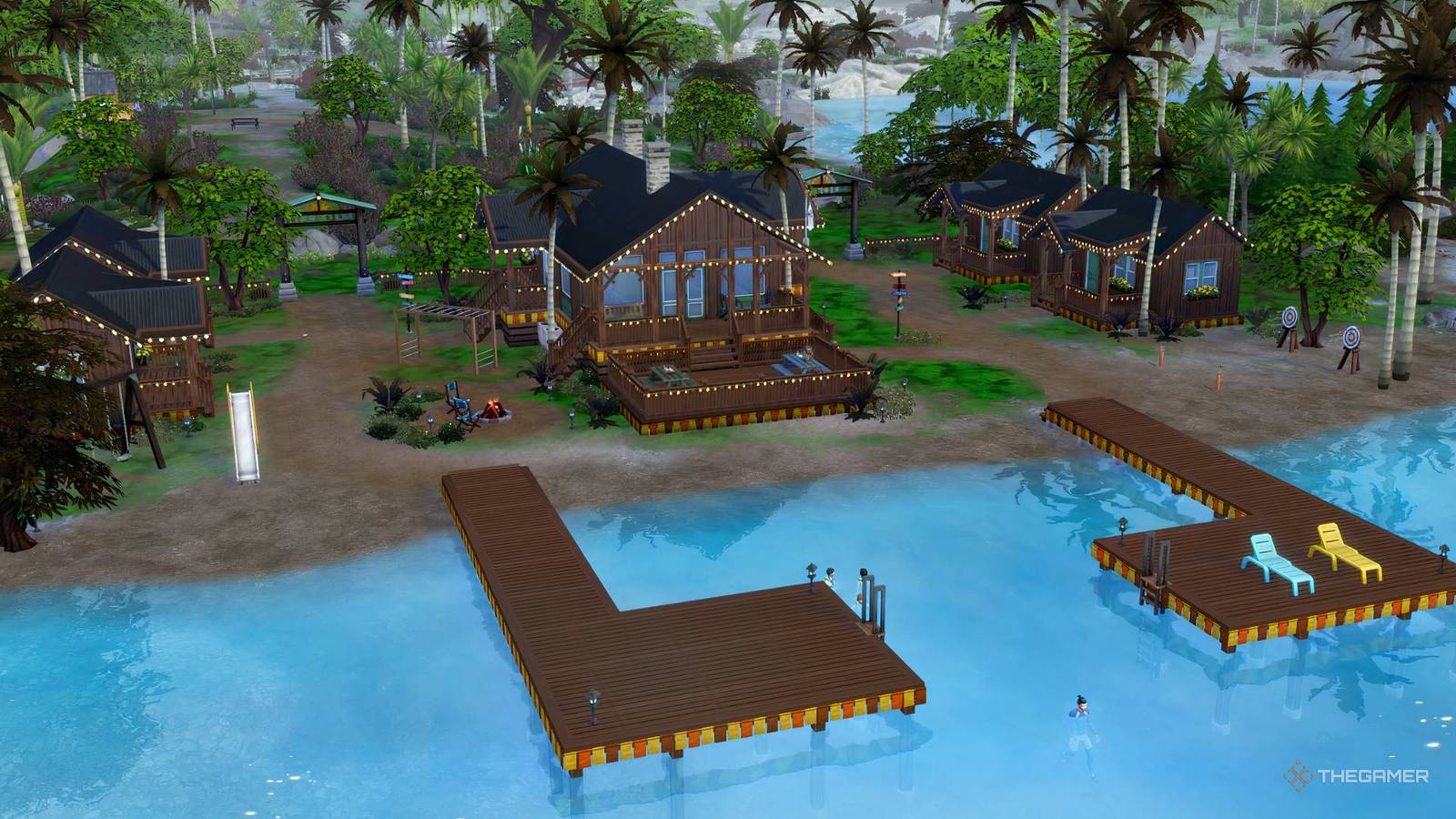
The Sims 4: Adventure Awaits utilizes the existing calendar tools to introduce a new way to control how Sims respond while on vacation. The ‘Getaway’ function adds a calendar of activities and Sims will follow this timetable, allowing you to decide when they eat and sleep as well as the activities on offer in between.
You can also use one of the custom getaways to send any or all of your household of Sims on a vacation. The best part is that all work and school commitments are suspended for the duration of the event. Let the holiday season commence with our guide to taking the ultimate getaway.
How To Schedule A Getaway

If you want to take your Sims on a getaway, you can use any Sim in the household to make the phone call. Even child Sims can make calls, although they can only send themselves to camp. Parental consent is apparently not required.
To start a getaway, just click on your cell phone icon at the bottom left and choose the green ‘Travel’ button with the car icon. From here the options relating to getaways are:
-
Plan a Fitness Retreat
- Sends Sims to the pre-built Revive and Thrive Fitness camp.
-
Plan a Getaway
- Allows you to choose from a selection of template getaways or design your own.
-
Plan a Romantic Competition
- Lets you compete in a ‘Love Highland’ competition with other Singles where the aim is to build up romantic connections, or you’ll be sent home.
-
Plan an Outdoor Kids Camp
- This allows you to send your child Sims to camp on their own, or you can have a parent go alongside them as a counselor.
Every getaway has a cost per day based on the number of Sims attending and the value of the lot.
The charging system is purely based on the number of Sims attending and their role does not factor into it. This means that while you can be a camp counselor or a staff member at Revive and Thrive, you will be charged as if you were attending as a guest.
To organize a getaway for a future day, you’ll need to open the calendar using the icon to the right of the phone icon. Next, click on the day you want the event to begin, and then choose ‘Add Getaway‘ from the bottom of the list on the left.
You will only have the custom getaway option to select, but you can use the pre-defined ones. You just need to set the appropriate locations and preset schedules from the interface.
Once you’ve selected your options on each tab, just click the tick on the final tab to start the getaway.
The Plan A Getaway Interface

When you open a pre-defined getaway, you’ll often end up being taken straight to the schedule section, but you may want to click through each one to check the details. Here’s what each tab means.
Location
This section allows you to choose a location for the getaway using the menu on the left. Above the lot image, you can use the dropdowns to customize:
- Getaway Duration – Choose from one to six nights.
- Recurrence – Choose if the event will recur weekly. You can use this to send Sims to a different household every weekend, for example.
- Start And End Time – Customize when Sims go and come back.
If you organize a getaway via phone call, you can only customize the end time to be a specific time of day. Use the calendar to unlock the ability to change the start date and time.
Schedule
There are eight pre-defined schedules, or you can create a completely customized one. In this section you can also set the roles for the getaway. There are plenty of defaults, including: bartender, chef, entertainer, guest, host, staff, and visitor. Each one has:
- Role Criteria – Set criteria such as age, skills, gender, fame level, traits, career, or relationship status.
- Activities – Define what that role does eg cook, clean, greet guests, build skills, eat, drink, dance etc.
- Outfit – You can choose a uniform for this role if you wish. This takes you to Create-A-Sim and saves the outfit against the role.
Rules
Many of the rules are for elimination competitions. However, you’ll also find some which help vary the getaways by adding positive or negative effects to anyone on the getaway.
You can choose which roles any buffs or debuffs apply to for extra customization.
How To Choose Your Location

The first tab, shown with a plumbob icon on a park, is the location. Down the left-hand side is the list of lots in your worlds. At the top, the All Lot Tops box can be clicked to bring up a drop-down menu where you can filter by lot type.
If you want to change the world, click the green line where it displays the world name. This will hide the menu for that world and show you a list of the others which you can scroll through. Just click on the world you want and that will become the selected drop-down.
From here, scroll down and click the lot. It will become highlighted in green and its image will appear on the right, along with the name and the icon of its world.
You’ll see a large image of the selected location with drop-down menus above to customize the duration as well as the start and end times. These are simple, just remember that the start time can only be customized via the calendar, not the phone.
Setting Roles

All pre-set schedules will already have roles assigned to Sims, but you can edit them. To make changes, click on the image of a Sim with the role name underneath.
You’ll now get a menu where you can set role criteria, and decide if it’s compulsory, as well as set the activities for that role. If we look at an example, the Cozy Bed And Breakfast schedule includes the role ‘Staff’. If you click on the Sim with Staff under their name, you’ll see that the only criteria for this is age of teen or above, and more annoyingly, the only activity is clean.
Staff is such a generic role that just cleaning feels like too little. To change this, you can add activities to include things like: be friendly, do home chores, fix objects, self-care, serve meals, or tend tea/coffee counters.
You can also change the age range. For example, an elderly fitness instructor is currently possible but may not be a good idea due to the overexertion death.

If you click the Sim’s portrait, you can choose specific Sims to fill the role. This is perfect for planning competitions or other events where the Sims you want to go aren’t all in the same household. The Sim list pulls from anyone you’ve met so far.
At any point, you can click the large + next to Create Role to make a completely custom role. However, these are the ones available by default, including the current age range, desired skills and listed activities.
|
Role |
Criteria |
Activities |
|---|---|---|
|
Amateur Chef |
Trait: Foodie (Desired) Teen or Above |
Cook Bake |
|
Artist |
Level 2 + Skills: Papercraft, Painting Or Pottery Teen or Above |
Paint View Art Papercraft Do Pottery Practice Tattooing |
|
Bartender |
Level 2 + Skills: Bartending Teen or Above |
Mix Bar Drinks Tend Bar |
|
Brainy Sim |
Young Adult Or Above |
Play Video Games Build Art & Music Skill |
|
Camp Counselor |
Trait: Seasoned Camp Counselor (Desired) Teen Or Young Adult |
Be Friendly Care And Mentor Children Clean |
|
Camp Director |
Trait: Seasoned Camp Counselor (Desired) Young Adult Or Above |
Be Friendly Care And Mentor Children |
|
Camper |
Trait: Seasoned Camper (Desired) Child |
Be Friendly Enjoy The Outdoors |
|
Chef |
Celebrity Level 3 Star+ (Desired) Level 2+ Skills: Cooking, Baking, Or Gourmet Cooking Young Adult Or Above |
Be Friendly Eat Mentoring Serve Meal |
|
Comedian |
Level 2+ Skills: Comedy (Desired) Teen or Above |
Do Comedy |
|
DJ |
Level 2+ Skills: DJ Mixing (Desired) Young Adult Or Above |
DJ |
|
Entertainer |
Level 2+ Skills: Comedy, DJ, Singing, Any Instrument (Desired) Teen or Above |
Dance Play Music Sing Do Comedy |
|
Fishermen |
Level 2+ Skills: Fishing (Desired) Teen Or Above |
Fish |
|
Fitness Trainer |
Trait: Seasoned Fitness Trainer (Desired) Level 2+ Skill: Fitness Young Adult Or Above |
Be Friendly Work Out Mentor Fitness Clean |
|
Friendly Sim |
Young Adult Or Above |
Be Friendly |
|
Gamer |
Teen Or Above |
Play Video Games Play Table Games |
|
Guest |
Teen or Above |
Be Friendly Drink Bar Drinks Listen To Music Eat Dance |
|
Host |
Young Adult Or Above |
Be Friendly Cook Tend Bar Tend Garden Clean |
|
Mean Chef |
Celebrity Level: 3 Star+ (Desired) Level 2+ Skills: Baking, Cooking, Gourmet Cooking Young Adult Or Above |
Eat Be Mean Mentoring Serve Meal |
|
Outdoor Collector |
Trait: Loves Outdoors Teen Or Above |
Look For Frogs Collect Butterflies |
|
Outdoor Enthusiast |
Trait: Loves Outdoors (Desired) Teen Or Above |
Do Water Activities Outdoor Recreation |
|
Rebel Sim |
Young Adult Or Above |
Cause Mischief And Mayhem |
|
Retreat Leader |
Trait: Seasoned Fitness Retreat Leader (Desired) Young Adult Or Above |
Be Friendly Mentor Fitness Fix Objects Clean |
|
Romantic Host |
Trait: Seasoned Romantic Host (Desired) Young Adult Or Above |
Be Friendly Fix Objects Clean |
|
Singles |
Trait: Seasoned Romantic Single (Desired) Relationship Status: Single Young Adult Or Above |
Be Flirty |
|
Sporty Sim |
Young Adult Or Above |
Work Out Play Physical Games |
|
Staff |
Teen Or Above |
Clean |
|
Teacher |
Young Adult Or Above |
Care For Infants And Toddlers Care And Mentor Children |
|
Writer |
Level 2+ Skills: Writing (Desired) Teen Or Above |
Write |
You’ll notice that Musician, Park Ranger, Popular Sim, Retreat Guest, Visitor, Child, and Senior are missing. This is because these are all lacking activities, which makes them fairly useless. The only criteria on these is an age range.
You cannot edit roles from the library, unless they are added to a getaway, so if you want something specific you will use again, we recommend using create role to set the parameters.
Set the role name, criteria, and activities, then the small icon of a head with an arrow next to it will allow you to upload it to the Role Library. You can confirm everything with the tick button.
Defining A Schedule

A schedule is a list of activities with times next to them. While on a getaway, Sims will prioritize the main activity listed in the scheduler before the activities in their defined roles. This helps you keep Sims on track while they are away.
You can have up to seven time slots per day and for each one you can set:
- Start Time – Set by the dropdown menu. It will end when the next time slot begins.
- Main Activity – Click the + in a circle and add your desired activity. You can only choose one.
- Who Participates – Click the ‘Add Role’ button to choose who follows the activity.
There are a large number of pre-planned getaways and schedules. The only difference between the two is that the full getaways have a purpose-built location linked to them. The pre-defined schedules just have a schedule, roles and rules. Here’s what you can choose from if you prefer to have somewhere to start from.
Pre-Planned Getaways
If you select from the pre-defined list in the phone menu: Fitness Retreat, Outdoor Kids Camp and Romantic Competition, these will populate not just the schedule and activities but also the locations and rules. Here’s what you can expect:
|
Getaway |
Location And Duration |
Schedule |
Rules |
Cost |
|---|---|---|---|---|
|
Fitness Retreat |
Revive And Thrive Retreat Jellyfish Junction Three Nights |
12:00 AM Sleep 7:00 AM Work Out 10:00 AM Have Breakfast 1:00 PM Free Time 6:00 PM Have Dinner 9:00 PM Self Care |
None |
$432 Per Sim Per Day $1,296 Total (1 Sim) |
|
Romantic Competition |
Love Highland Crystal Valley 2 Nights |
1:00 AM Sleep 8:00 AM Have Breakfast 11:00 AM Enjoy The Outdoors 5:00 PM Have Dinner 8:00 PM Mix And Mingle |
Romantic Elimination Elimination: Lowest Progress Loses Love Is In The Air Only Young Adults or Older Select Who Is Eliminated Select Who Is Romanceable |
$458 Per Sim Per Day $916 Total (1 Sim) |
|
Outdoor Kids Camp |
Camp Gibbi Gibbi Wanderland Wilds 4 Nights |
6:00 AM: Have Breakfast 9:00 AM Build Physical Skills 1:00 PM Do Water Activities 5:00 PM Campfire 10:00 PM Sleep |
None |
$236 Per Sim Per Day $944 Total (1 Sim) |
While these are fully pre-planned getaways with appropriate venues built, you can also choose one of the pre-planned schedules. These are activity schedules and rules for common getaway types. However, you will need to find, build or download a suitable venue from the gallery.

Pre-Planned Schedules
There are five pre-planned schedules. Here’s what they look like:
|
Name |
Schedule |
Rules |
|---|---|---|
|
Cooking Competition |
7:00 AM Have Breakfast 10:00 AM Cook 4:00 PM Serve Meal 8:00 PM Self Care 11:00 PM Sleep |
Cooking Skill Elimination Lowest Progress Loses Must Be Amateur Chef |
|
Cozy Bed & Breakfast |
7:00 AM Have Breakfast 10:00 AM Free Time 5:00 PM Have Dinner 8:00 PM Free Time 100:00 PM Sleep |
None |
|
Creativity Retreat |
7:00 AM Have Breakfast 10:00 AM Arts And Music 5:00 PM Have Dinner 8:00 PM Arts And Music 11:00 PM: Sleep |
Buff Writing Skill Buff Painting Skill Buff Music Skill |
|
Senior Living Community |
5:00 AM Have Breakfast 8:00 AM Work Out 11:00 AM Play Table Games 4:00 PM Have Dinner 7:00 PM Free Time 10:00 PM Sleep |
None |
|
Sim Popularity Contest |
7:00 AM Have Breakfast 10:00 AM Free Time 1:00 PM Enjoy The Outdoors 5:00 PM Have Dinner 8:00 PM Free Time 11:00 PM Sleep |
Lowest Progress Loses Popularity Elimination Choose Who To Befriend |
All of these can be edited by individually clicking on the different sections on the menu. This means that even a pre-set can be tweaked a little to make it work.
Setting Rules

There are 14 different rules in total, and you can use up to five of them. They can be split into three categories:
Neutral Or Positive Buffs
These will have either a neutral or positive effect on the experience of Sims and their uses include removing jealousy from a bachelor challenge, increasing skills faster, and changing the scheduler to keep things fresh.
- Activity Shuffle – Mixes up the main activity of a timeslot.
- Grindset Mindset – Boosts happiness when building skills, working or crafting.
- Love Is In The Air – Romantic relationships are easier to build and slower to fade.
- No Strings Attached – Sims won’t get jealous.
- Renaissance Studio – Build creative skills faster and produce higher-quality crafts.
Chaotic Or Negative Buffs
These add an element of difficulty or chaos to your experience by making it harder to maintain needs and relationships.
- Hardcore Mode – Hunger, energy, and hygiene decrease faster.
- House Of Grudges – Friendship fades faster and friendships are harder to maintain.
Elimination Rules
All elimination rules are exclusive, so only one can be in place at once. You can also change the elimination criteria to Lowest Score Loses or Lowest Progress Loses. The first eliminates Sims based on the overall skill level, while the second looks at how much skill has been built in the last day.
Where a rule lists several skills, it will add up progress or levels across them all.

Here are the most straightforward elimination rules and the skills they measure.
|
Elimination Rule |
Skills Measured |
|---|---|
|
Child Skills |
Creativity Mental Motor Social |
|
Cooking Skills |
Cooking Gourmet Cooking Baking |
|
Creative Skills |
Painting Writing Singing Songwriting Playing An Instrument |
|
Survival Of The Fittest |
Fitness |
You can also choose Player Elimination, Popularity Elimination, or Romantic Elimination but these work differently.
- Player Elimination allows you to override all criteria and choose yourself which Sim will go each day. You’ll choose from a pop-up menu at the end of each day.
- Popularity Elimination lets you choose which role Sims will befriend, as well as which role will be eligible for elimination. Sims with the least progress in their friendly relationship with the Sim you’ve chosen to have them befriend will be eliminated.
- Romantic Elimination is similar to popularity except that you choose a role for Sims to be romantic with, and romantic relationship is the criteria measured when it comes to elimination.
Starting The Getaway

Once you’ve got all the settings to your liking, simply press the tick icon on the Set Rules tab to begin the getaway. Once it starts, the schedule will be available at the top left of the screen and can be clicked on to hide it if you prefer.
When the getaway is finished, you’ll get a pop-up which offers the option to continue the getaway or to go home. You can also cancel the getaway at any time by clicking on the getaway schedule icon at the top left.
