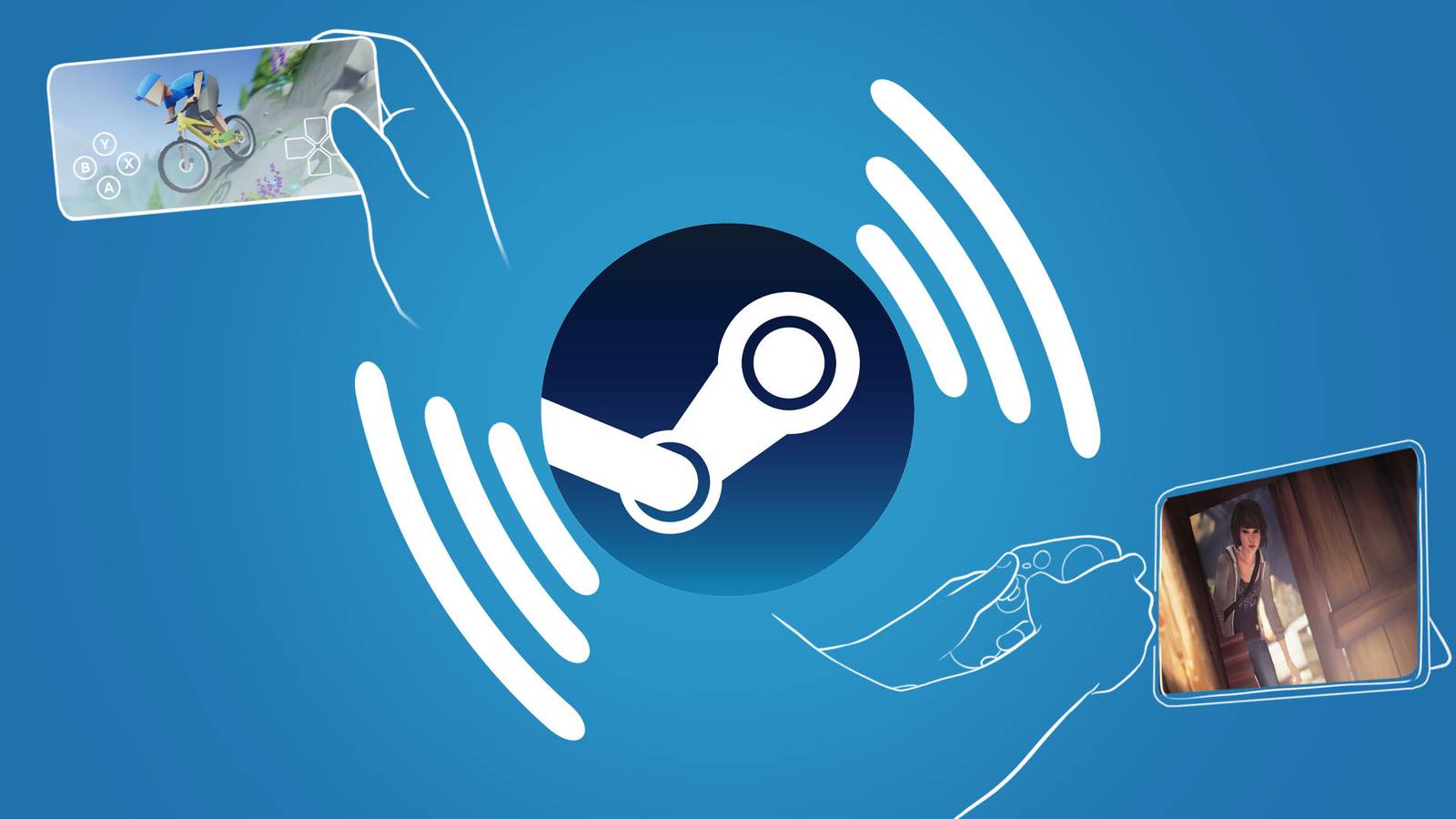
Whether you want to get away from your desk for a moment or you're out in the garden and want to do some gaming, having the Remote Play option on Steam is a complete game-changer. Allowing you to stream games from your main gaming computer to another device means you get the same performance as your main system, but without being tethered to your desk. In this guide, I'll explain how to use Remote Play on Steam on both a laptop and a Steam Deck so you can follow the process and get gaming on the go.
Steam Deck: How to Install Decky Loader
Decky Loader can unlock the potential of Steam Decks. Here's how to install it.
How to remote play on Steam to another laptop or PC
To remote play on another laptop or PC, you first need to enable remote play on your main system. In these examples, I've named my PC 'Beast' and my laptop 'Beast Jr'.
First, go to your PC that you want to stream and click on 'Steam' in the top left corner. From here, go to the 'Settings…' option and then scroll to the 'Remote Play' option in the left-hand sidebar menu.

Here, you first need to toggle on the 'Enable Remote Play' option at the very top. Below this menu are other settings, such as setting up a permanent connection PIN (more on that later) or enabling advanced host options, but you don't have to use it if you don't want to.
After doing this, open Steam on your laptop. In my case, I did this on Beast Jr, and went to the Steam Settings menu in the same 'Remote Play' menu.
Here, you need to click on the 'Connect' option next to the name of the computer/device on which you want to stream the game. In the screenshot below, you can see 'Beast' is there, so I've clicked 'Connect' next to it.

This then brings up the 'Authorize Device' screen on the PC/device you want to stream. In this example, it appears in 'Beast'. On the device you want to remote play on, in this example 'Beast Jr', you'll be given a four-digit authorization code. Enter it on the PC you want to stream and click 'Confirm'.

Once this is done, select the game you want to remote play on your laptop, and the green button should now say 'Stream'. If it doesn't, click the little downward-pointing white arrow next to it, and you should now find a 'Stream from:' option.
To play a remote game, remember that it must be installed on the device from which you want to stream it.
Playing Remote on a Steam Deck
The process remains the same when remote playing on a Steam deck. Go to the 'Remote Play' menu in Steam Settings and click on the device you want to connect to. Enter the authorization code that appears on your Steam Deck screen on the device you want to stream to, and then load the game you want to play.
Remote Play is particularly useful in Steam Decks as it helps graphically demanding games look and run much better on a handheld device without going through a lengthy optimization process. However, keep in mind that Steam Remote Play requires a fairly fast and stable internet connection to prevent dropouts and latency issues.
- brand
-
valve
- Original release date
-
September 12, 2003
- Original MSRP (USD)
-
N/A
- weight
-
N/A
